 CouponStack
Features
Everything CouponStack can do, and exactly where to set it up. All of it is included in every plan and in the free trial.
Offer type
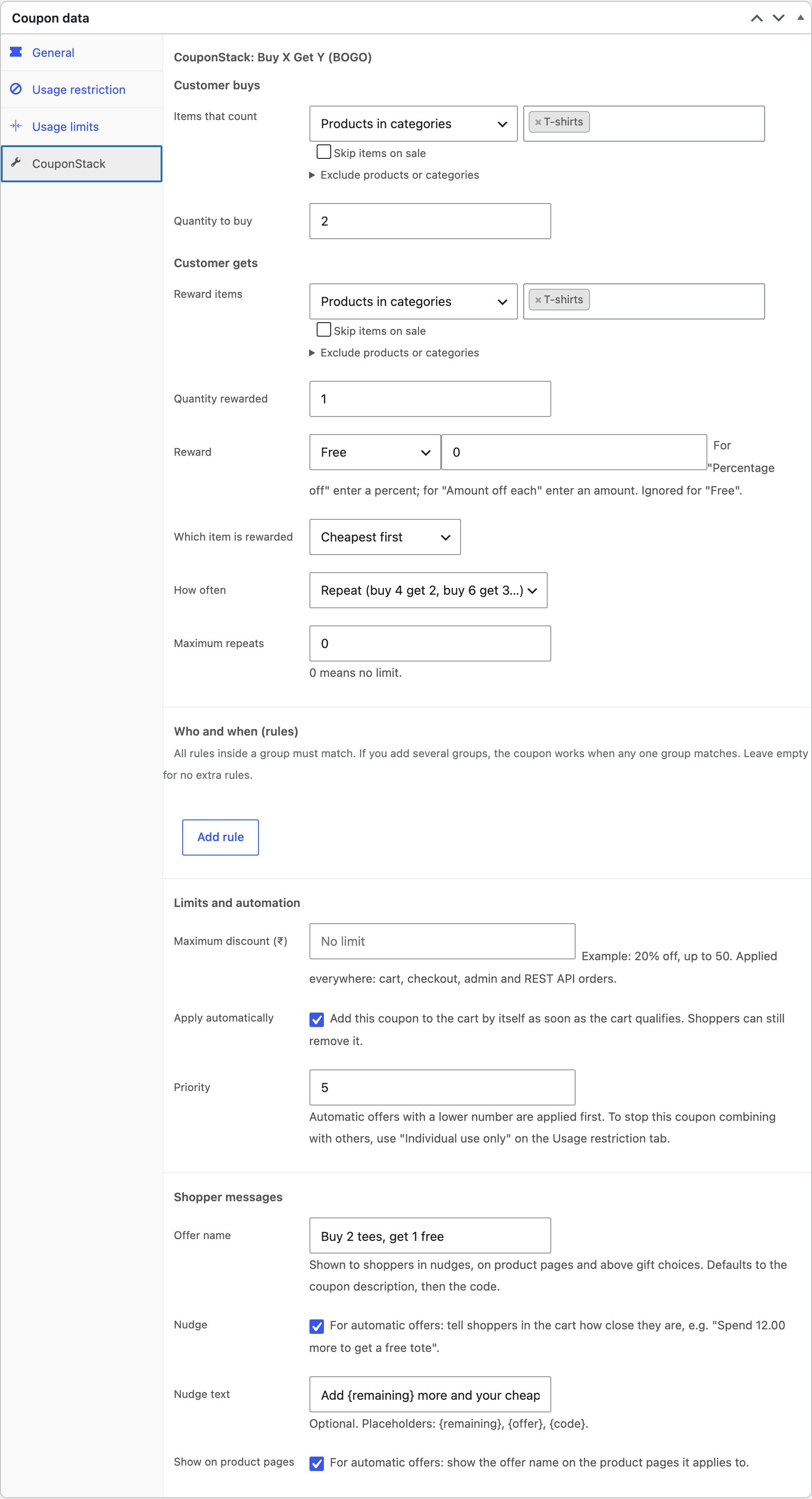
Buy X Get Y (BOGO)
Buy 2 get 1 free, buy 1 get the second 50% off, buy a shirt get a cap free. The reward can be the same product, any product, or items from chosen products, categories, tags, attributes or brands.
- Go to Marketing → Coupons → Add coupon and enter a code.
- On the General tab, set Discount type to CouponStack: Buy X Get Y (BOGO).
- Open the CouponStack tab, fill in the fields below, and publish.
| Customer buys | Which items count (any product, specific products, categories, tags, attribute values or brands, with exclusions and “skip items on sale”) and how many. |
|---|---|
| Customer gets | “The same product”, or a separate group of reward items, and how many. |
| Reward | Free, percentage off, or an amount off each rewarded item. |
| Which item is rewarded | Cheapest first (most common) or most expensive first. |
| How often | Once per order; repeat (buy 4 get 2, buy 6 get 3…) with an optional maximum; or tiers (buy 3 get 1, buy 5 get 2…). |
Example: “Buy 2 tees, get 1 free” across all colours: Items that count = Products in categories: T-shirts, quantity 2; Reward items = Products in categories: T-shirts, quantity 1; Reward = Free; Cheapest first. Use “The same product” only when the free item must be identical, for example 3 navy tees.
Offer type
Tiered discounts (buy more, save more)
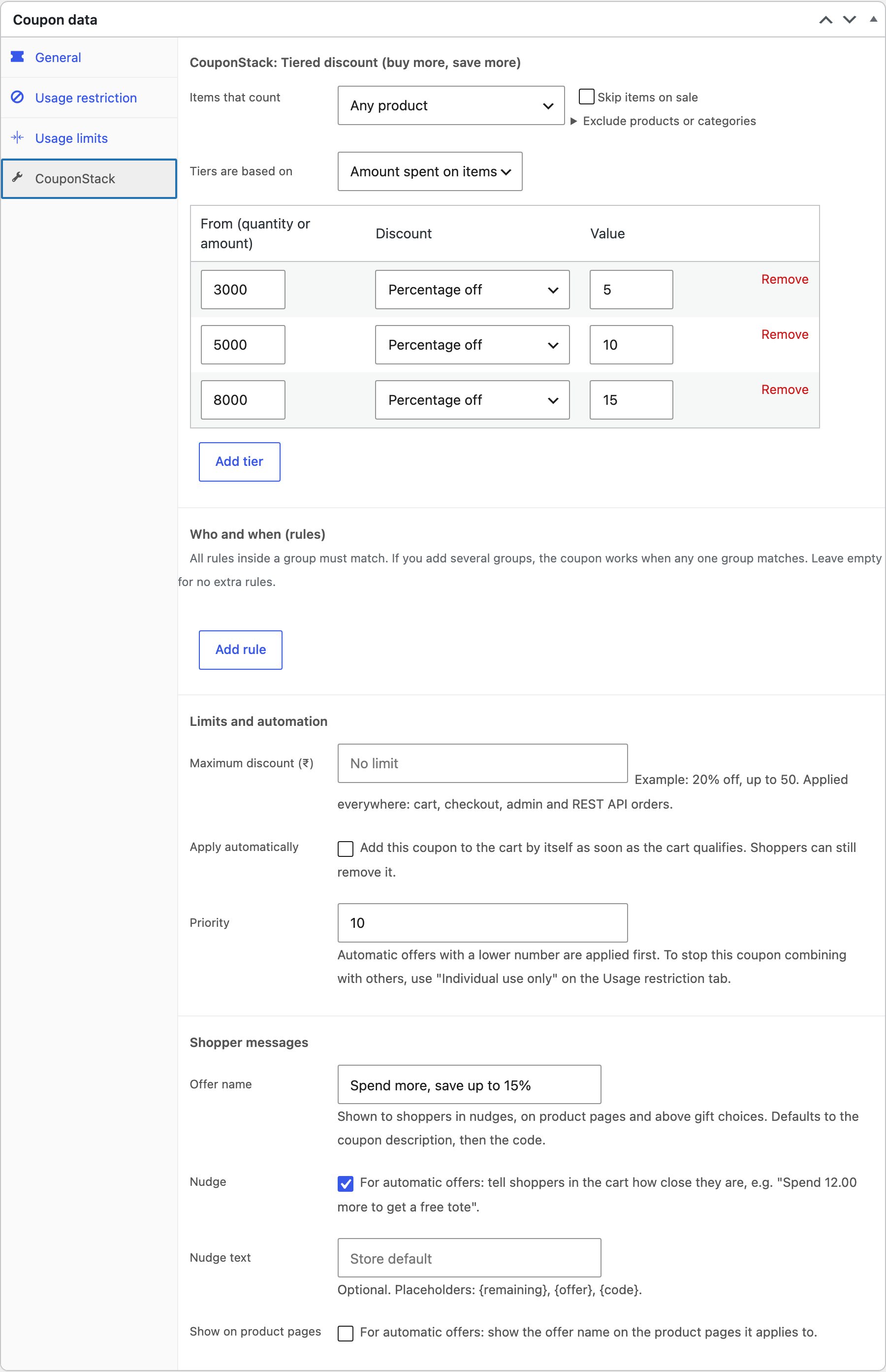
Bigger discounts for bigger orders, based on how many items are bought or how much is spent on them.
- Go to Marketing → Coupons → Add coupon and enter a code.
- On the General tab, set Discount type to CouponStack: Tiered discount (buy more, save more).
- Open the CouponStack tab, fill in the fields below, and publish.
| Items that count | Any product, or chosen products, categories, tags, attributes or brands. |
|---|---|
| Tiers are based on | Quantity of items, or amount spent on those items. |
| Each tier | From (quantity or amount) and a discount: percentage off, amount off each item, amount off in total, or a fixed price for each item. |
Example: spend ₹3,000 → 5% off, ₹5,000 → 10%, ₹8,000 → 15%. With nudges on, shoppers see how much more to spend for the next tier.
Offer type
Bundle price (any N for a fixed price)
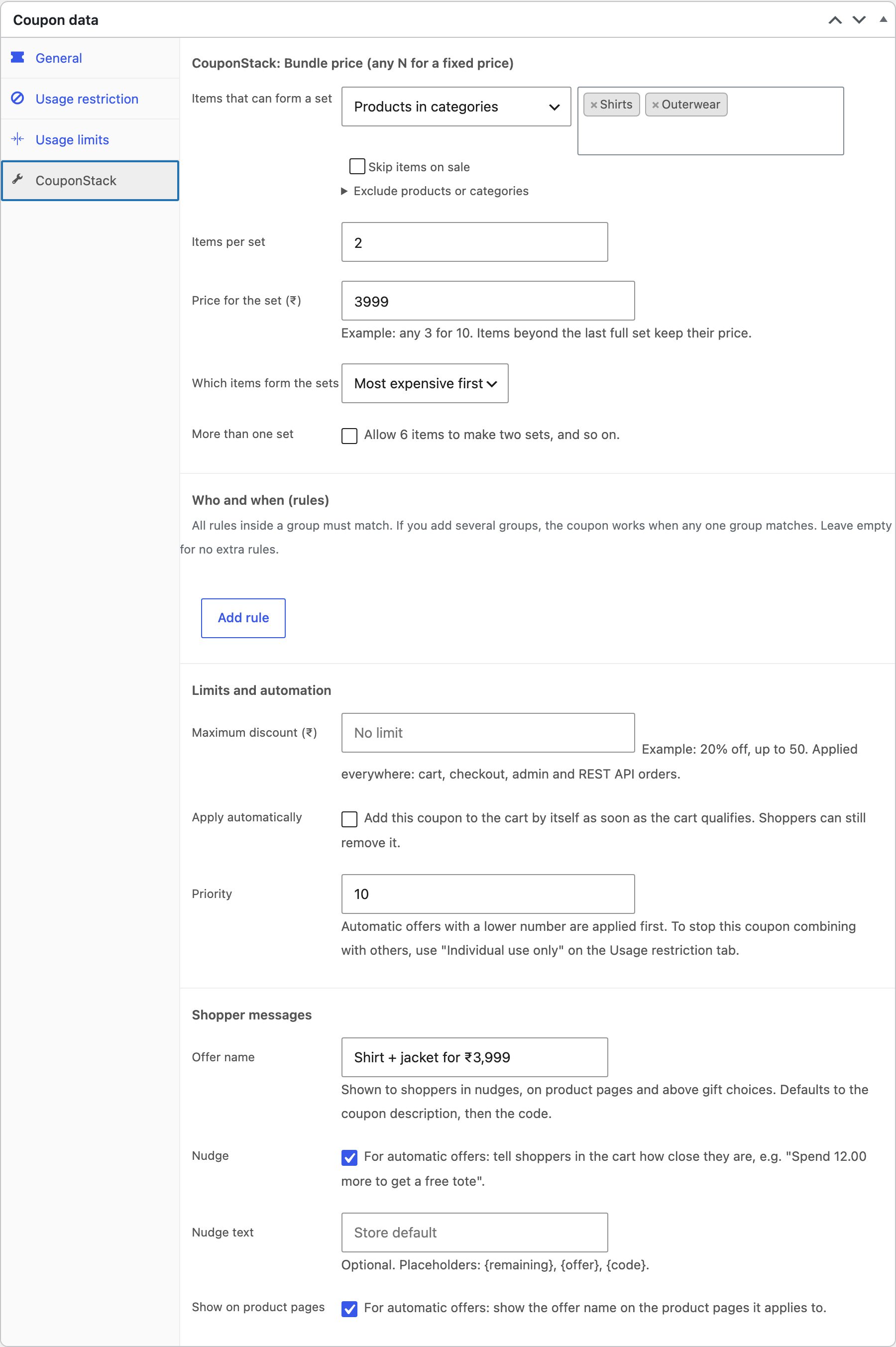
“Any 3 tees for ₹1,999” or “a shirt and a jacket for ₹3,999”. Shoppers mix and match from a group of products.
- Go to Marketing → Coupons → Add coupon and enter a code.
- On the General tab, set Discount type to CouponStack: Bundle price (any N for a fixed price).
- Open the CouponStack tab, fill in the fields below, and publish.
| Items that can form a set | Products, categories, tags, attributes or brands. |
|---|---|
| Items per set / Price for the set | For example 3 items for ₹1,999. Items beyond the last full set keep their normal price. |
| Which items form the sets | Most expensive first (best for shoppers) or cheapest first. |
| More than one set | Allow 6 items to make two sets, with an optional maximum number of sets. |
Offer type
Free gifts
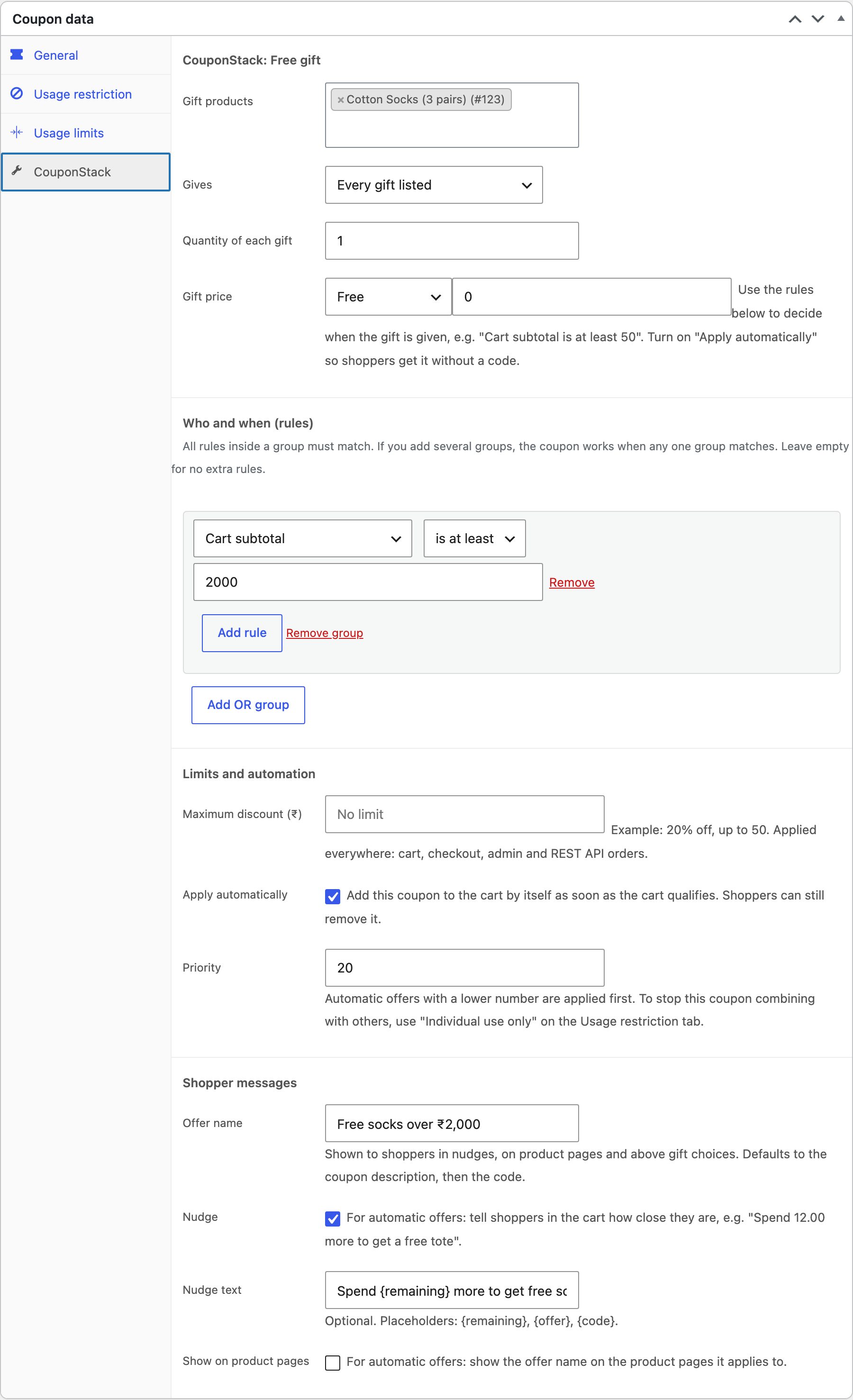
Add a free (or discounted) product to the cart when the order qualifies. Give every listed gift, or let the shopper choose one.
- Go to Marketing → Coupons → Add coupon and enter a code.
- On the General tab, set Discount type to CouponStack: Free gift.
- Open the CouponStack tab, fill in the fields below, and publish.
| Gift products | Up to 50 products. |
|---|---|
| Gives | Every gift listed, or one gift the shopper chooses (a gift picker appears in the cart). |
| Quantity / Gift price | How many of each, free or a percentage off. |
| When | Add rules such as “Cart subtotal is at least ₹2,000” and turn on Apply automatically. |
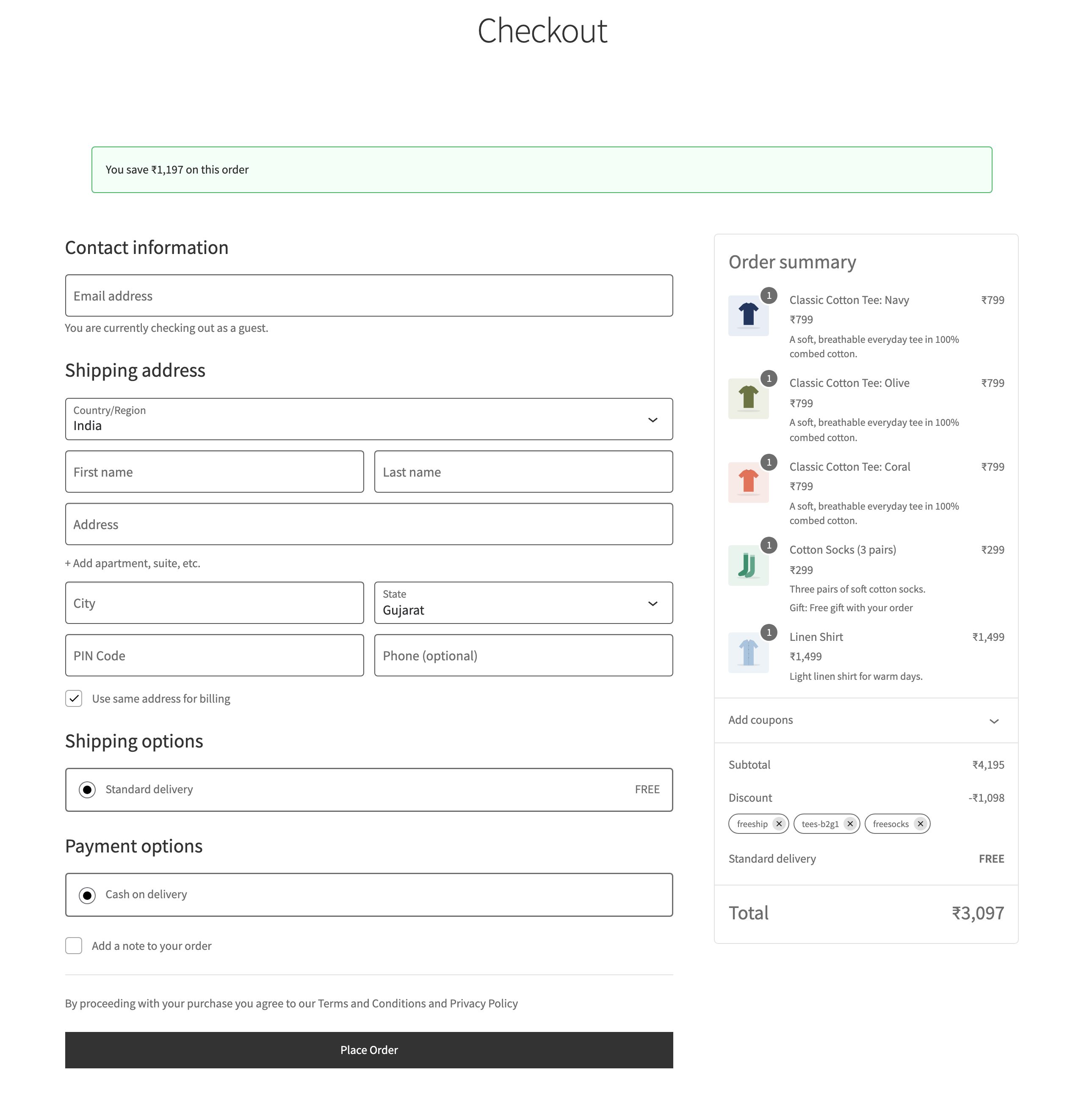
Gift items are marked “Free gift with your order”, don’t count towards other offers, and are removed automatically if the cart stops qualifying.
Offer type
Shipping offers
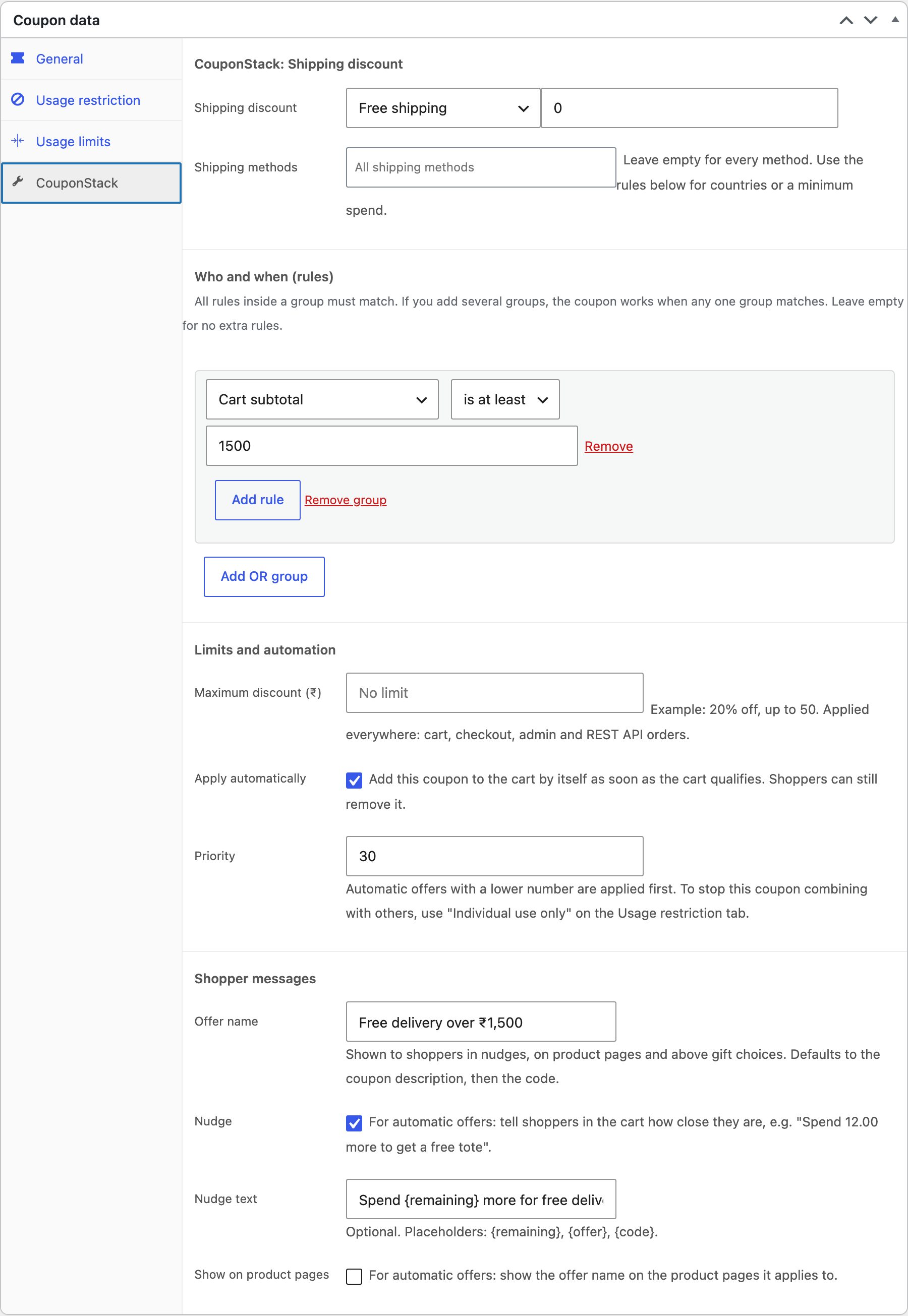
Free or cheaper delivery when the order qualifies, for every shipping method or only the ones you choose.
- Go to Marketing → Coupons → Add coupon and enter a code.
- On the General tab, set Discount type to CouponStack: Shipping discount.
- Open the CouponStack tab, fill in the fields below, and publish.
| Shipping discount | Free shipping, percentage off, amount off, or a fixed shipping price. |
|---|---|
| Shipping methods | All methods, or only chosen ones (e.g. standard delivery but not express). |
| When | Rules such as minimum spend, shipping country, state, city or postcode. |
Offer type
Discount on selected items
A percentage or fixed discount on chosen products, categories, tags, attributes or brands only, with an optional maximum. For example “20% off all outerwear, up to ₹500”.
- Go to Marketing → Coupons → Add coupon and enter a code.
- On the General tab, set Discount type to CouponStack: Discount on selected items.
- Open the CouponStack tab, fill in the fields below, and publish.
| Items discounted | Any product, or chosen products, categories, tags, attributes or brands, with exclusions. |
|---|---|
| Discount | Percentage off, or a fixed amount off. |
| Maximum discount | Optional upper limit for the whole coupon. |
Any coupon
Discount caps (“up to”)
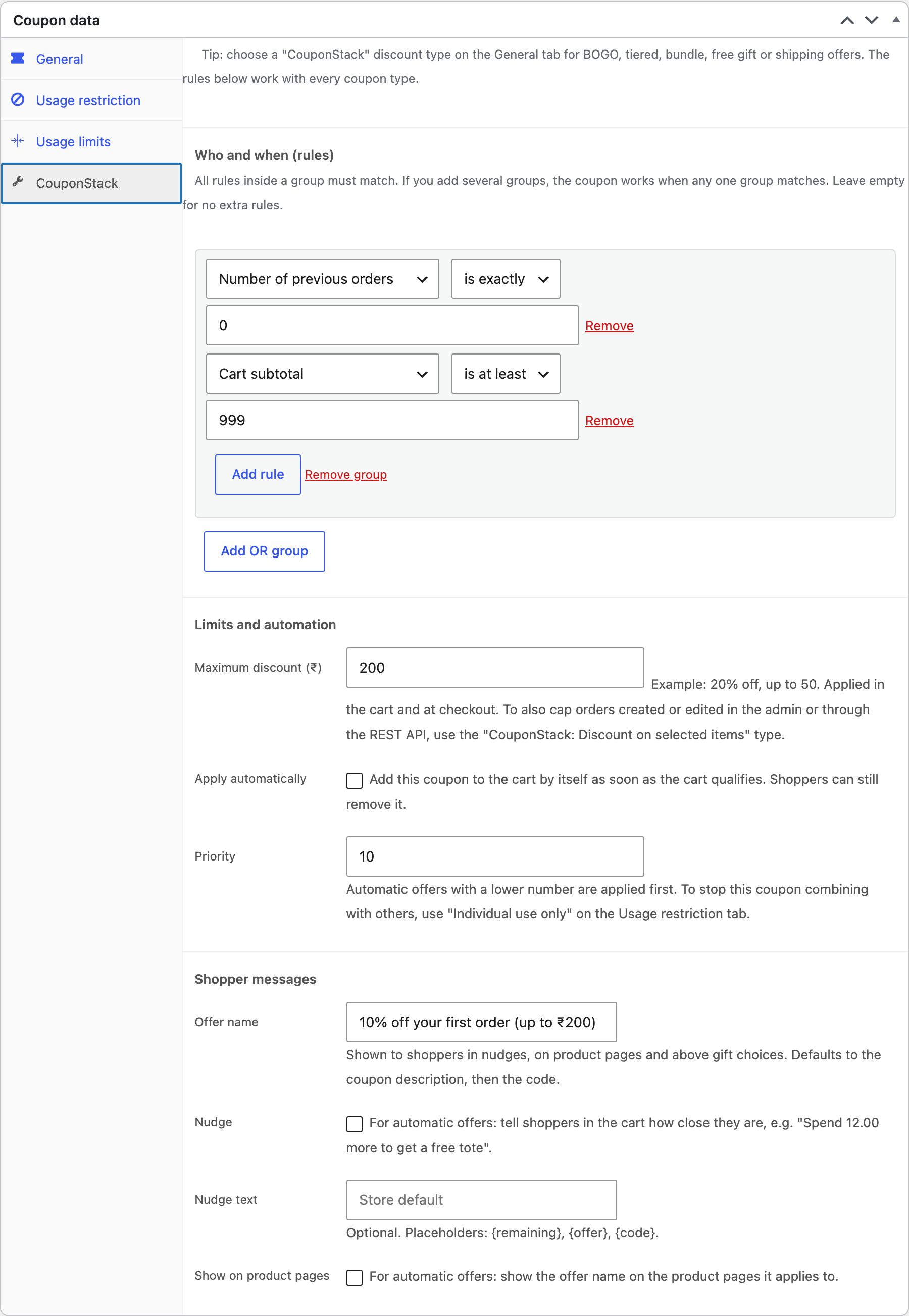
“10% off, up to ₹200”. Set a Maximum discount on any coupon, including WooCommerce’s own percentage and fixed product coupons.
- Edit any coupon and open the CouponStack tab.
- Under Limits and automation, enter the Maximum discount, for example 200.
For WooCommerce’s built-in types the cap applies in the cart and at checkout. To cap orders created in the admin or through the REST API as well, use “CouponStack: Discount on selected items”.
Any coupon
Rules: who gets the offer, and when
Add rules to any coupon in CouponStack tab → Who and when (rules). All rules inside a group must match; add OR groups for alternatives. Shoppers see a clear reason when a rule isn’t met, such as “Spend ₹999 or more to use this coupon”.
Cart
- Cart subtotal
- Number of items in cart
- Products in cart
- Categories in cart
- Cart weight
- Other coupons in cart
Customer
- User role (including guests)
- Logged in
- Email or email domain
- Billing country
- Shipping country
- Shipping state
- Shipping postcode (ranges and wildcards)
- Shipping city
Checkout
- Payment method
- Shipping method
Purchase history
- Number of previous orders
- Total spent before
- Previously bought products
Schedule
- Date range
- Days of the week
- Time of day (store time zone)
Operators: is at least, is at most, is exactly, is between, is any of, is none of, includes all of. Example: “First order only” = Number of previous orders is exactly 0.
Automation
Automatic coupons
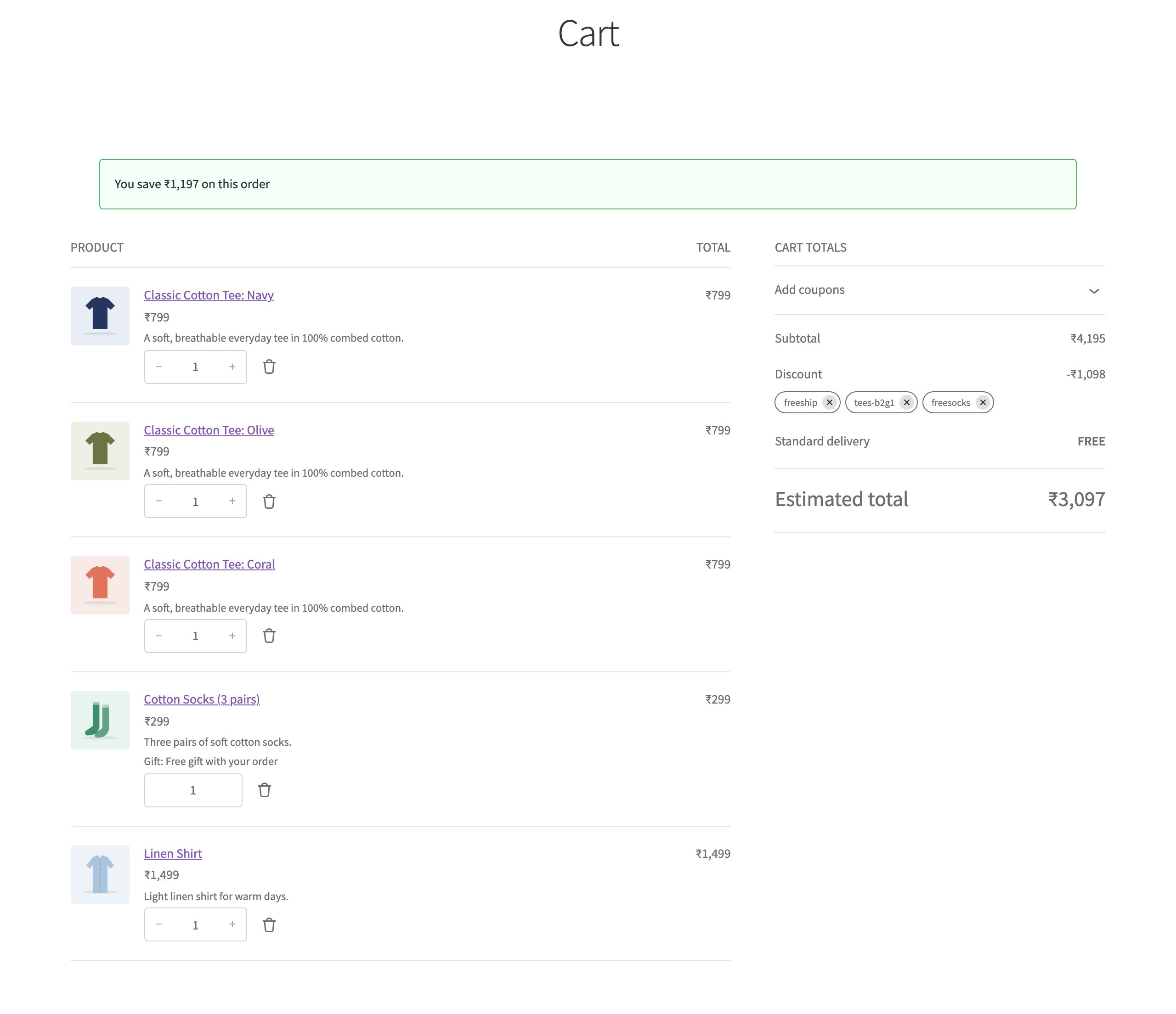
Tick Apply automatically on a coupon and it is added to the cart as soon as the cart qualifies, and removed when it no longer does. Shoppers can still remove it.
| Priority | On each coupon. Lower numbers are applied first. |
|---|---|
| When several automatic offers qualify | WooCommerce → Settings → CouponStack: apply them all in priority order, or only the best discount for the shopper. Gift and shipping offers are always added on top. |
| Most automatic coupons per cart | A safety limit, 5 by default. |
| Combining | To stop a coupon combining with others, use WooCommerce’s “Individual use only”. |
Automation
Coupon links
Share https://your-store.com/?coupon=SUMMER in emails, ads, WhatsApp or QR codes. Opening the link applies the coupon. If the cart is still empty, the code is remembered and applied when the first product is added.
| Turn on | WooCommerce → Settings → CouponStack → Coupon links. |
|---|---|
| Link parameter | Change coupon to any word you like. |
| Add to cart too | Combine with WooCommerce’s add-to-cart links: /?add-to-cart=123&coupon=SUMMER. |
Shoppers
Shopper messages
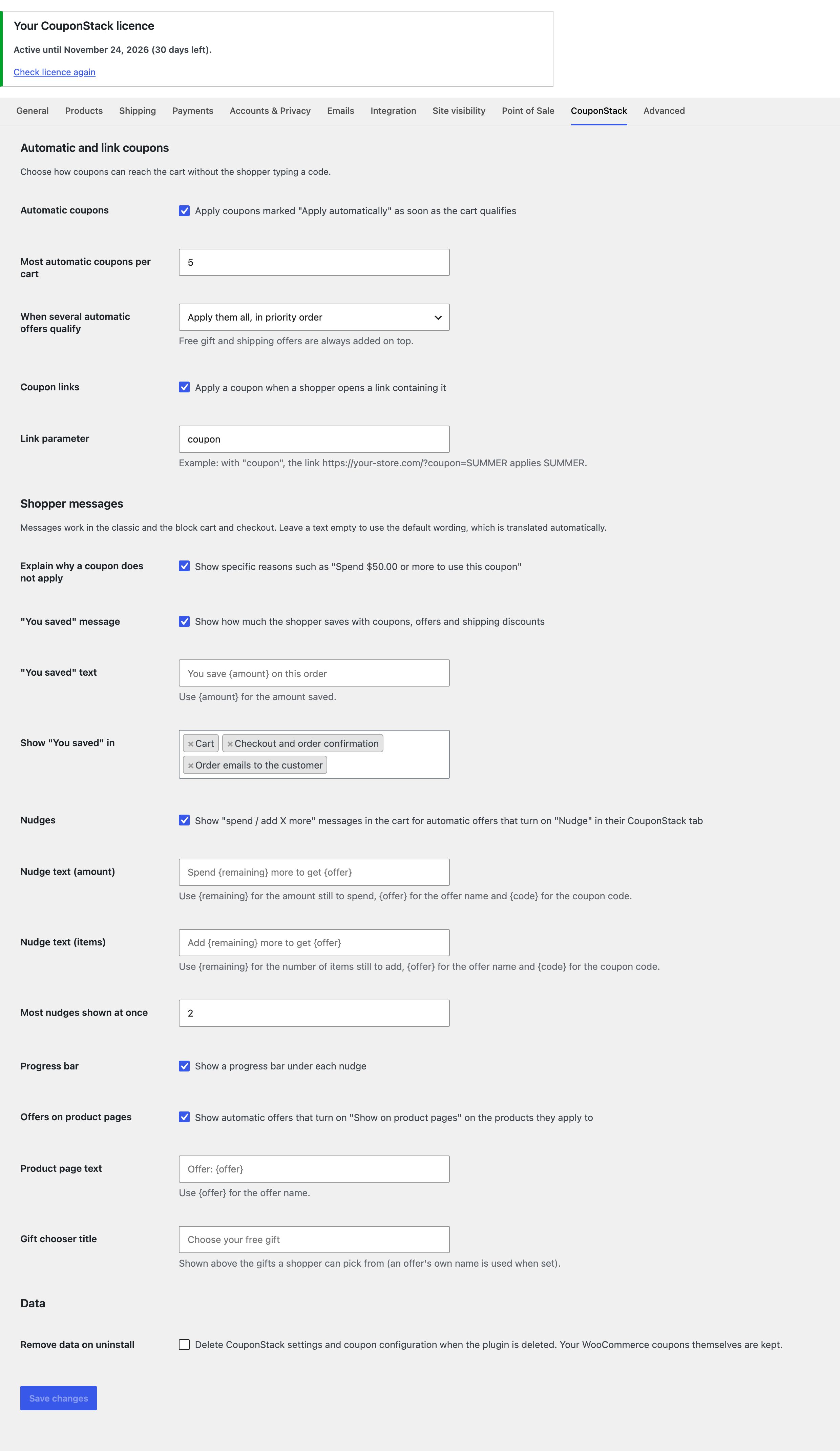
Tell shoppers what they save and what they could save. Everything is configurable in WooCommerce → Settings → CouponStack → Shopper messages, and works in the classic and block cart and checkout.
| “You saved” message | Total saved from coupons, offers and shipping discounts, in the cart, at checkout, on the order confirmation and in order emails. |
|---|---|
| Nudges | “Spend ₹402 more to get free socks” with an optional progress bar. Turn on per coupon, with your own text or the store default. |
| Offers on product pages | Show automatic offers on the products they apply to. |
| Why a coupon doesn’t apply | Specific reasons instead of WooCommerce’s generic “coupon is not valid”. |
| Wording | Every text can be changed, with placeholders such as {amount}, {remaining} and {offer}. Leave empty to use the translated default. |
Compatibility
Checkout, blocks and APIs
CouponStack calculates every discount inside WooCommerce’s own coupon engine, so totals match wherever the cart or order is built.
Cart & Checkout blocks
Offers, gift choices, nudges and savings appear in the block cart and checkout.
Classic cart & checkout
The same offers and messages on shortcode-based themes.
Store API
Headless stores and mobile apps get the same discounts, plus offer messages in the cart response.
REST API & admin orders
Coupons added to orders through /wc/v3/orders or the order editor are calculated by the same engine. Existing orders are never changed.
Try every feature free for 7 days
No card needed. Then ₹599 / 30 days or ₹4,999 / year ($6.99 or $59 outside India).